Installation on a Freebox Delta
On a Freebox Delta
This tutorial explains how to install Gladys on a Freebox Delta (this is done with Docker).
Create a virtual machine on the Freebox Delta
First, go to the Freebox interface at the following address: mafreebox.free.fr.
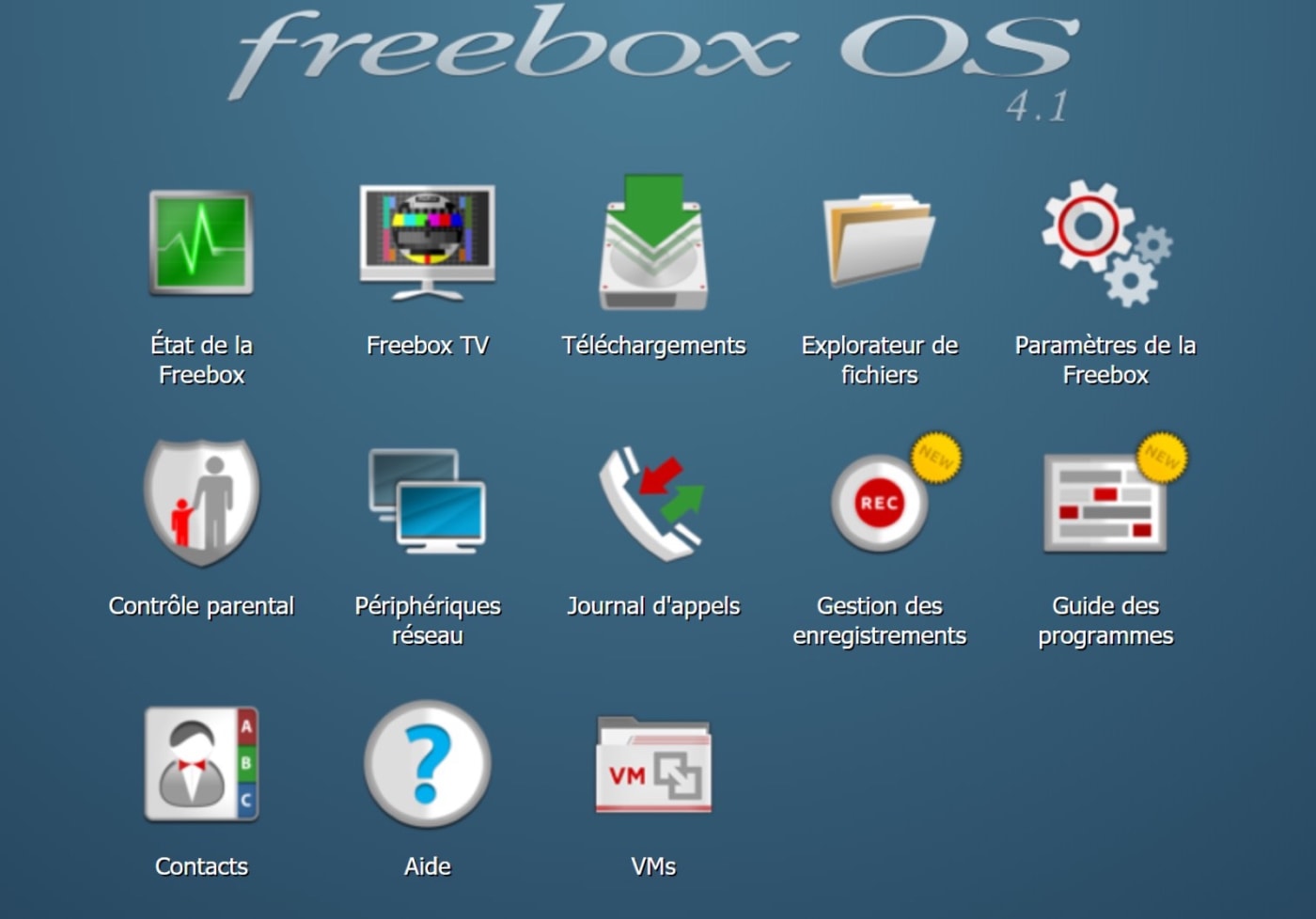
Click on "VMs". This window appears:
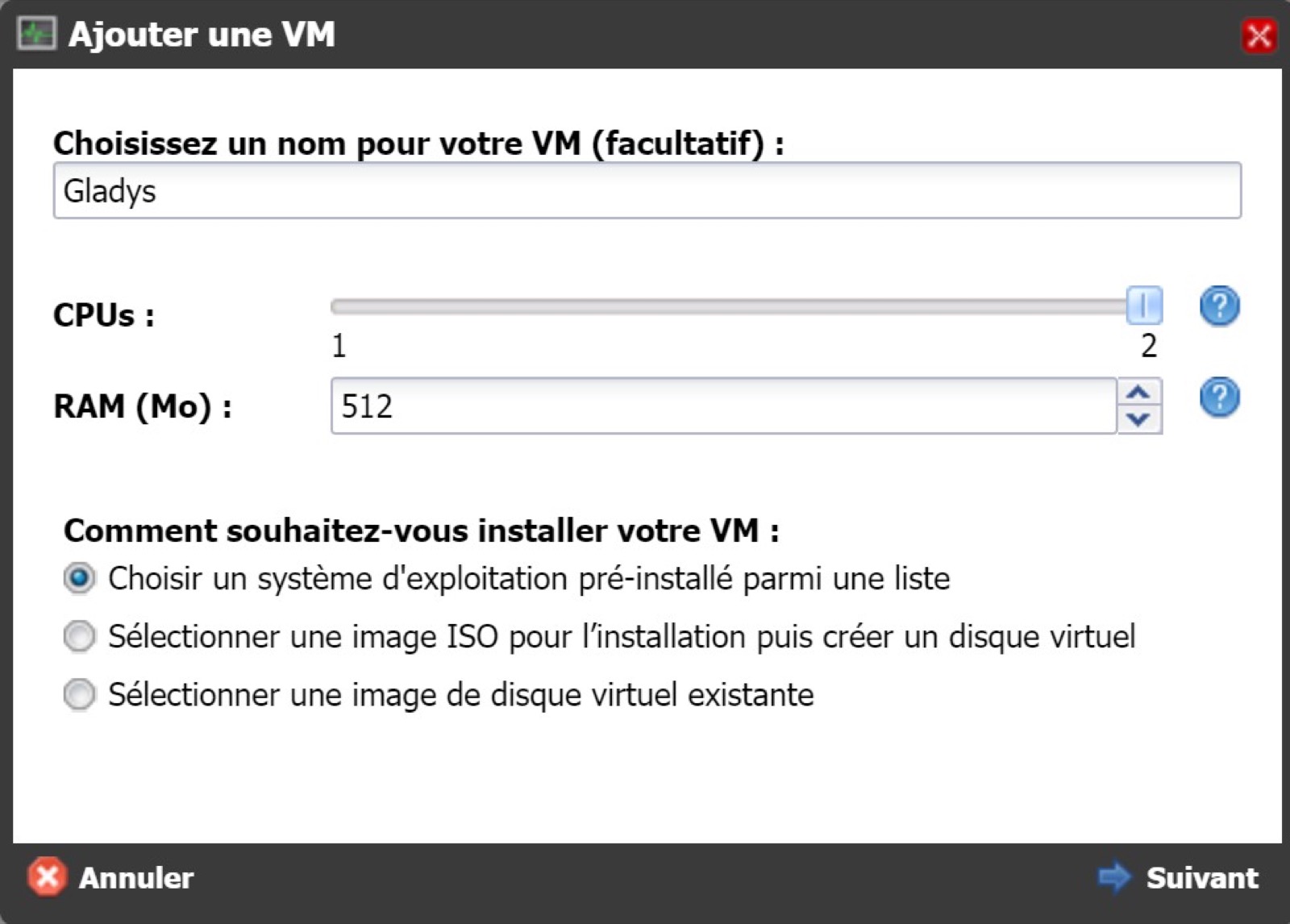
Choose a name for the VM, for example Gladys.
Select the option "Choose a pre-installed operating system from a list".
Click on "Next".
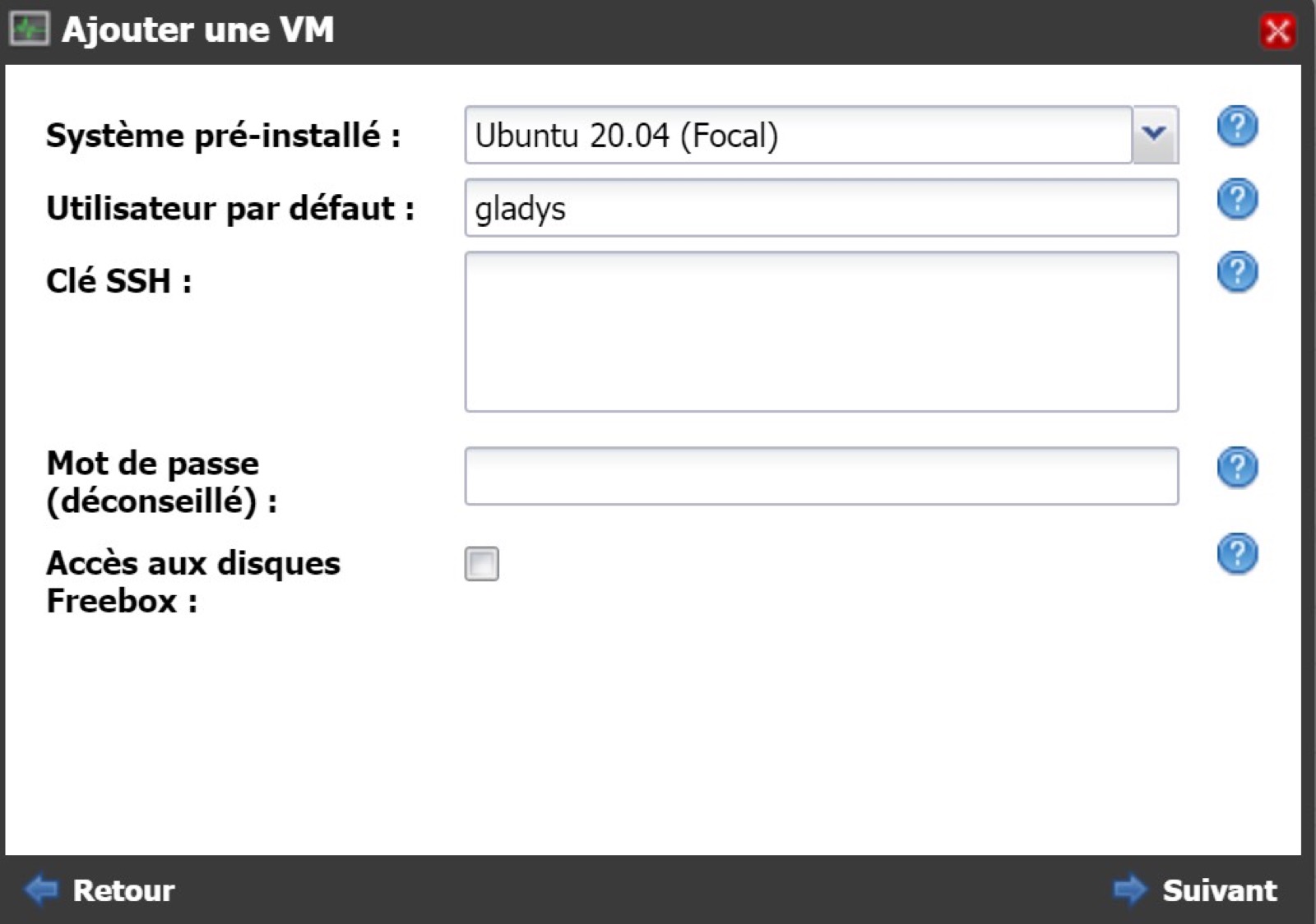
Select the system to install, for example Ubuntu.
Enter a public SSH key or password.
Choose a username, for example gladys.
Click on "Next".
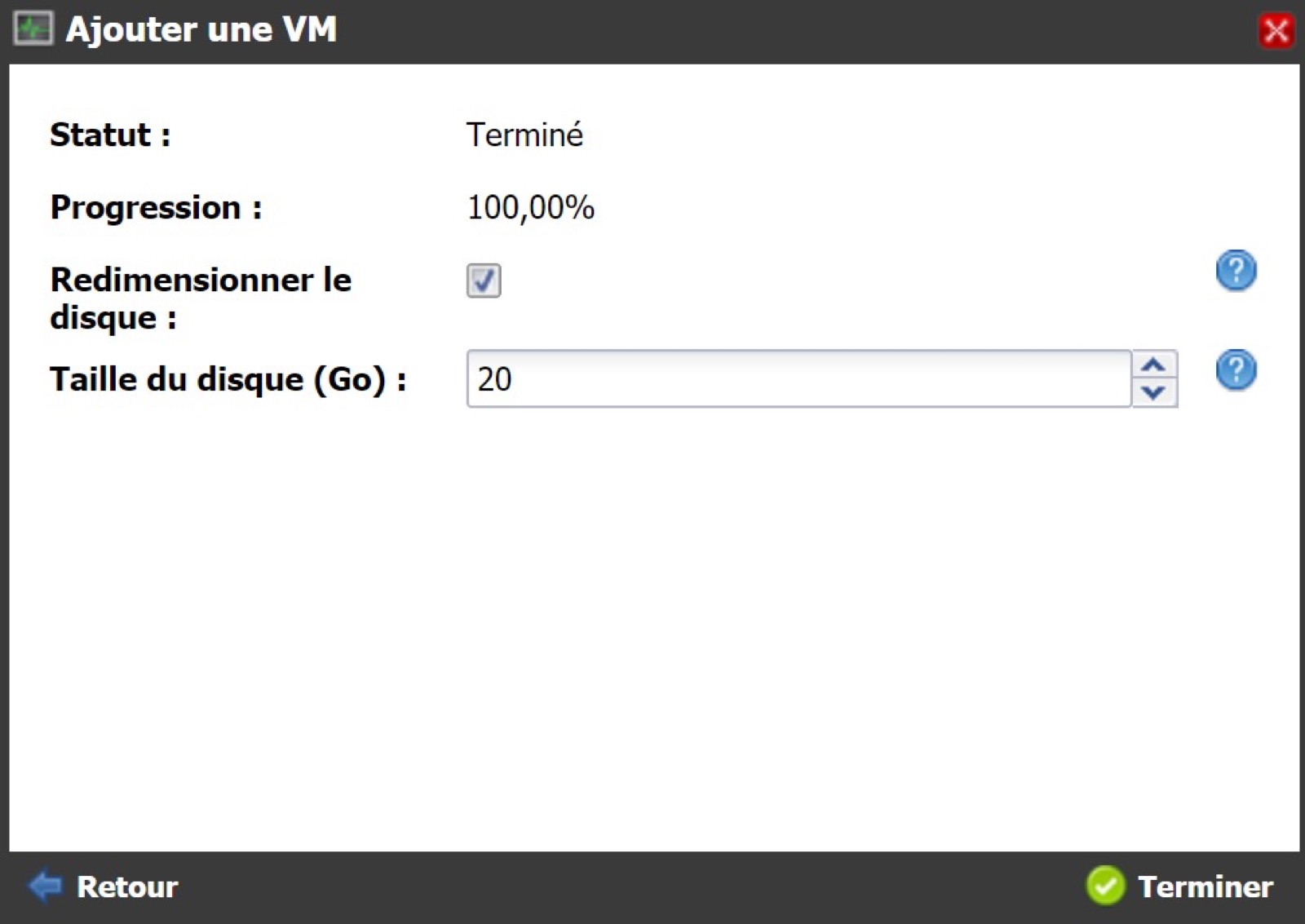
Click on "Finish".
The virtual machine (VM) is ready, click on "Switch on" to start the VM.
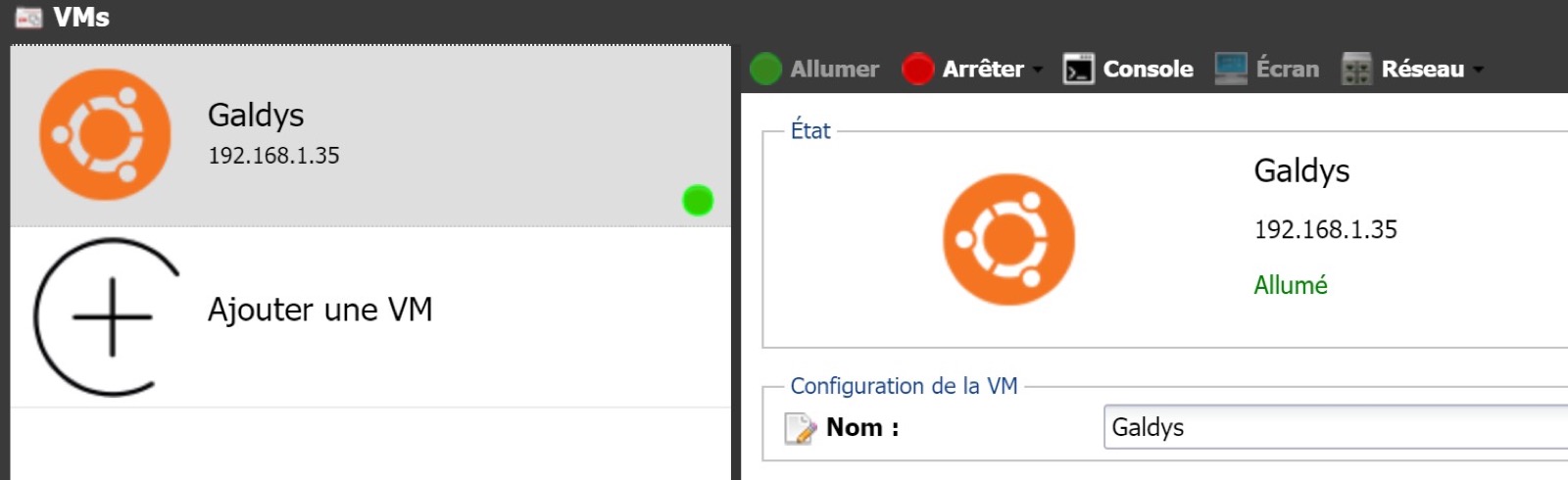
SSH into your VM and update the system:
sudo apt update
sudo apt upgrade
Install Docker on the Raspberry Pi
Type in the following commands, one by one, to install Docker on the Raspberry Pi.
sudo apt install docker.io
sudo systemctl enable --now docker
sudo usermod -aG docker gladys
Then exit your SSH session, and login again to ensure the changes are applied.
Start Gladys
To launch Gladys, run the following command on your VM:
docker run -d \
--log-driver json-file \
--log-opt max-size=10m \
--cgroupns=host \
--restart=always \
--privileged \
--network=host \
--name gladys \
-e NODE_ENV=production \
-e SERVER_PORT=80 \
-e TZ=Europe/Paris \
-e SQLITE_FILE_PATH=/var/lib/gladysassistant/gladys-production.db \
-v /var/run/docker.sock:/var/run/docker.sock \
-v /var/lib/gladysassistant:/var/lib/gladysassistant \
-v /dev:/dev \
-v /run/udev:/run/udev:ro \
gladysassistant/gladys:v4
Auto-Upgrade Gladys with Watchtower
You can use Watchtower to upgrade automatically Gladys when a new version is available. To do so, start a Watchtower container:
docker run -d \
  --name watchtower \
  --restart=always \
  -v /var/run/docker.sock:/var/run/docker.sock \
  containrrr/watchtower \
  --cleanup --include-restarting
Accessing Gladys
You can access Gladys directly by typing the IP of your VM in your browser.